How to move the entrance to your home in World of Warcraft Player Housing
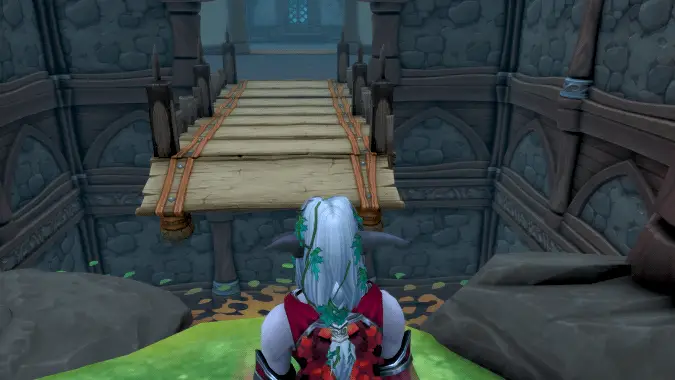
Player Housing enthusiasts were particularly excited for WoW patch 12.1, which would add the ability to move your home’s entrance, allowing you to build basements or simply change your layout without starting over. However when the patch launched, the feature was disabled due to a fairly serious bug that had a chance of sending your character off into an infinite loop of being ported into the void. No one wanted that.
But with the week two reset, the ability to move your home’s entrance was fixed and made available to players. You can now create the basement, cellar, mine shaft, or pit of your dreams. Here’s how to move your home’s entrance in World of Warcraft Player Housing.
How to move the entrance to your home in Player Housing
The entrance isn’t just the front door. A common misunderstanding is that moving the door to your home moves the entrance, but doors are simply another piece of decor and changing, adding, or moving them doesn’t relocate the entrance. The Front Door decor items are an exit point, you can have as many of these in your house as you wish. There are currently two Front Door assets available, there are two additional decor items in the database, one was available on the Midnight PTR but we haven’t seen either of them on live as yet. These are the “front door” appearances we know about so far:
- Founder’s Point Front Door
- Razorwind Shores Front Door
- Bel’ameth Front Door – not yet in game
- Silvermoon Front Door – not yet in game
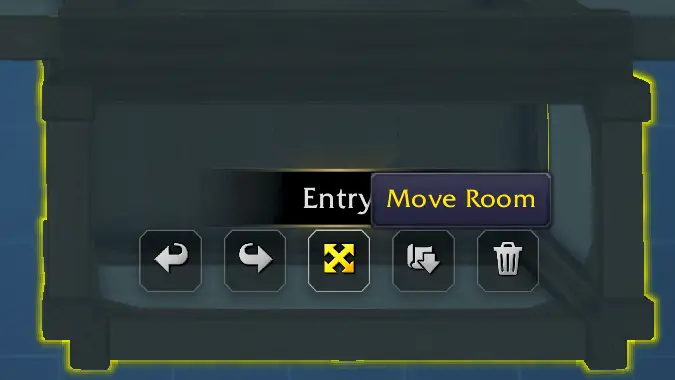
How to move the Entry Room. Actually moving the entrance to your home involves moving the Entry Room. The entrance to your house is locked to the Entry Room, no matter how you decorate it. This room is unique, and you cannot delete it, but now you can move it. This includes changing which level the entrance appears on.
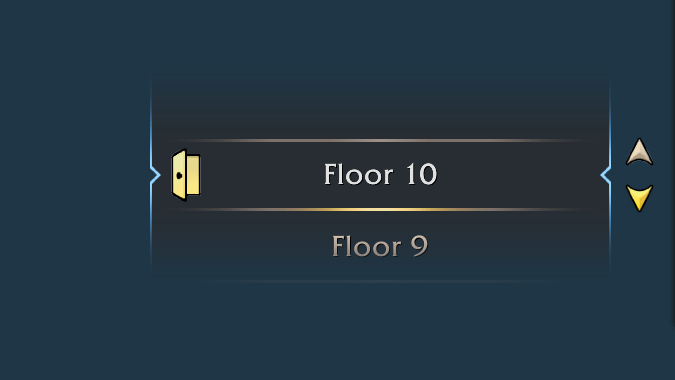
To change where you enter your house, you move the Entry Room using the room placement editor. While in the room placement mode, right click on the Entry Room name to see the context menu options — choose “Move” then drag the room to its new desired location. If you want to change what level the entrance is on, you need to use the floor selection widget in the bottom right hand corner without ‘letting go’ of the Entry Room. If you accidentally ‘drop’ the Entry Room it will revert back to its previous location and you will need to try again.
When in the room placement screen it will show an icon on the left hand edge of the floor selection widget to indicate which floor the entrance is currently located on.
How do I move the entrance to a lower level?
According to the developers, the current floor limit is 100 — though you couldn’t actually build a full 100 levels as you would run out of placement budget before then. However, you could build up a bit, move your entry, delete the lower levels, build up a bit, rinse, repeat, until you are at the level you want to be at.
Floor 1 will remain the lowest possible level you can possibly build at, if you want to create the illusion of going down from the entry level you need to move your Entry Room to a higher level.
If you’re starting a new house layout and you are not yet sure whether you will want to go up or down, it may be worth moving the entrance up several floors to give yourself future options to build basements or other underground spaces.
What happens to my entrance if I reset my house?
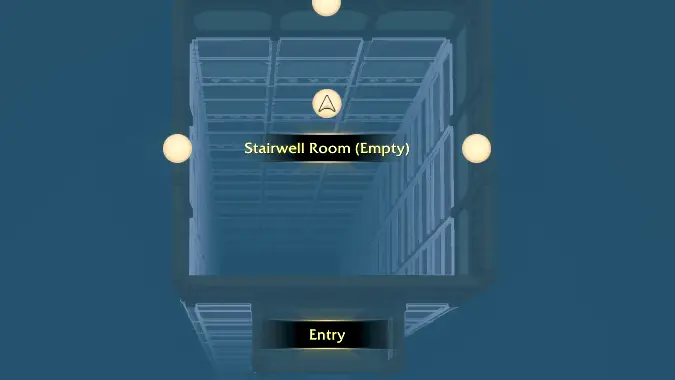
Along with Blueprints for saving and sharing housing designs, patch 12.1 introduced a reset feature which erases your house and sets it back to a fresh out-of-the-box state. If you reset your house, it will delete all the saved rooms and decor and set the exterior to the faction default small house in the default position on your plot. This includes moving your Entry Room back to the Floor 1 location, but with no Front Door decor item. Reset really means reset: you’ll have to set up your home (and the entrance) from scratch.
Are you planning to move your front entrance? What ideas does this give you? What is your favourite underground space?
Please consider supporting our Patreon!
Join the Discussion
Blizzard Watch is a safe space for all readers. By leaving comments on this site you agree to follow our commenting and community guidelines.