How to use WoW’s Cooldown Manager — and will it be good enough to replace WeakAuras in Midnight?
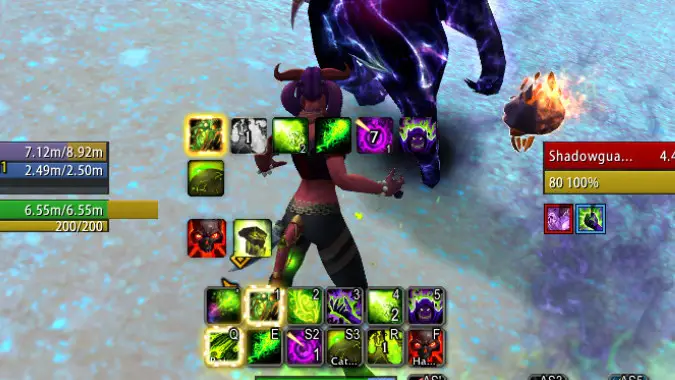
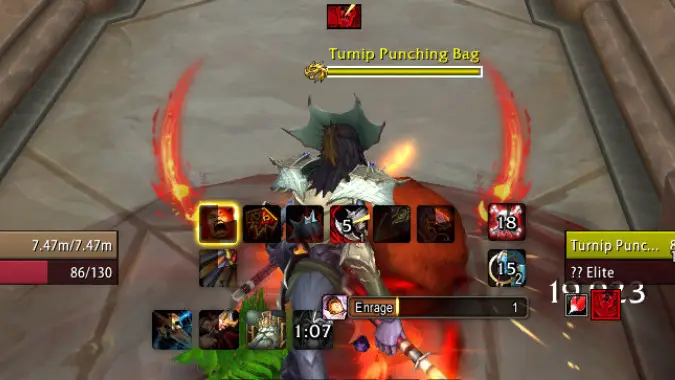
The Cooldown Manager is an in-game tool to help players track their ability cooldowns, buffs, and debuffs, replicating functionality that has usually been provided by addons such as WeakAuras and TellMeWhen. This is a lightweight feature that is easily customizable, allowing players to drag almost any of their combat abilities into the Cooldown Manager panel so that they can be tracked.
So let’s make sense of this Cooldown Manager, and determine if it’s enough to allow players to properly track their rotations and other abilities in combat.
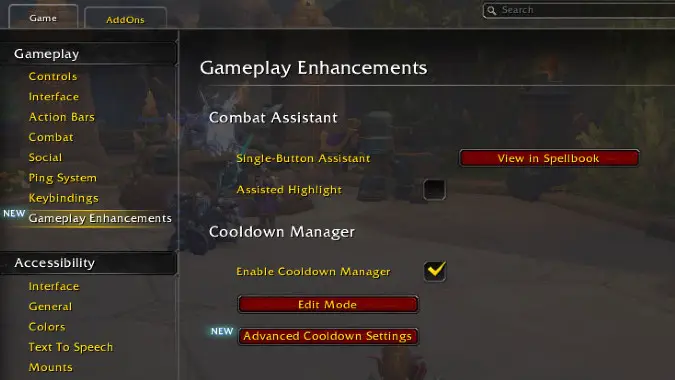
Enabling the Cooldown Manager and customizing it in Edit Mode
To set up the Cooldown Manager, start by going to the Options menu (from your main menu, that you can access with the Esc key), then Gameplay Enhancements on the left. From there, Navigate to Cooldown Manager and check the Enable Cooldown Manager box.
Below it, you’ll see two buttons: one is simply a shortcut to your regular Edit Mode, which allows you to move any interface frame (and you might already be accustomed to using it). Once the Cooldown Manager has been enabled from the options menu, it’ll be available here in Edit Mode as well.
This will allow you to individually move each of the four UI elements that comprise the Cooldown Manager:
- Essential Cooldowns: think of these as your main rotational abiilties
- Utility Cooldowns: buttons that you might press every once in a while but aren’t part of your moment-to-moment gameplay
- Tracked Bars: displays the duration of things like spell auras and summoned pets
- Tracked Buffs: displays buffs and debuffs you might need to track at all time
Drag those four elements to the positions you want, customize them to your liking (orientation, icon size, etc), and then we’ll move on to actually selecting what should be displayed on each of those panes.
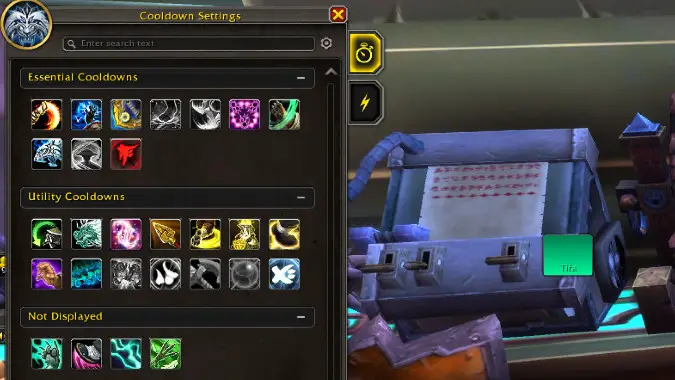
The Advanced Cooldown Settings window lets you pick which abilities to track
Now it’s time to click that Advanced Cooldown Settings button back in the Gameplay Enhancements -> Cooldown Manager section of the Options menu. This is the place to select which abilities you’ll be tracking.
Once the Cooldown Settings window is open, on the left side of your screen, you’ll see several icons, for each of your combat abilities. They’re separated in three areas: at the top, Essential Cooldowns, where you should leave your rotational abilities, the ones you need to keep track of at all times. Below it are the Utility Cooldowns, which you should leave for things you need to pay attention to at certain moments, but not always, whether it’s long coolodowns, defensives, or utility abilities. And finally, Not Displayed is simply where you leave everything you’re don’t want to track.
It’s a simple matter of dragging icons to the top two categories if you want to track them, or back down to Not Displayed if you don’t. Do notice that there are two tabs — check the icons to the right of the Cooldown Settings pane: a clock/stopwatch icon for Essential Cooldowns and Utility Cooldowns, and a lightning bolt icon for Tracked Buffs and Tracked Bars. So click on each tab to configure all your abilities.
You can drag the icons within each of the areas to change their positions relative to each other, which is very important for the Essential Cooldowns (your basic rotation) in particular. It allows you to always see each rotational ability in a specific position you want it to be in, which your muscle memory will certainly appreciate after a while.
Finally, do keep in mind that with Midnight a new functionality is being added to allow you to easily share “builds,” like you can do with talents and transmog. You can already see that in the beta, if you have access.

The recently-added ability to add visual and sound alerts is essential for advanced users
One of the latest iterations of the Cooldown Manager, as of the time of this writing, included the ability to add visual and sound alerts to an ability by right-clicking on it. You can pick from several preset visual “flashes” for each icon or sound bites to play when a certain event of your choosing happens. That event could be something like “the ability has just come off cooldown,” “the ability has just gained a charge,” or “Pandemic,” for dots, which means it’s time to refresh that dot — extremely useful.
This ability to set up “pandemic” alerts has single-handedly made the cooldown manager finally “usable” for me, personally — tracking dots was considerably harder using this instead of WeakAuras, but the alerts (especially the sound alerts) can get the job done. And, of course, being warned when an important ability comes off cooldown is very useful as well.
All in all, this is an excellent development to please advanced users, and I hope Blizzard continues boosting these alerts even more. Right now, not every ability can have alerts added to it: it’s mostly relegated to your coolodowns, while being largely absent from auras you might want to track (such as Starfall for Balance Druids, for example).
How good is the Cooldown Manager?
The latest version, after a few iterations, is considerably better than what we had before, and as of now, I can say that it’s perfectly usable. If you spend some time setting it up — much like you would do with WeakAuras — you can get a decent amount of information that allows you to perform your rotation better.
One minor annoyance is that every time you want to mess with the options again, you have to click Options -> Gameplay Enhancements and scroll down to the Advanced Cooldown Settings button. That button is way too hidden inside two menus; we really should be able to access it more easily.
It’s still missing advanced features such as the ability to use the visual/sound alerts for certain abilities. Some of them simply don’t have the alerts enabled. If I’m on my Balance Druid and I want to be warned when my Eclipse or my Starlord buff is running out, I currently can’t. I also don’t have a way set up auras for things that aren’t abilities or buffs, like resources (an alert when I’m almost resource-capped, for instance).
All in all, this is a decent tool that gets the basic job done. Players who have grown used to more powerful addons might have a hard time adapting, but at least the tool is robust enough that people will be able to adapt in time, in most cases.
Originally posted November 28, 2025. Updated January 12, 2026.
Please consider supporting our Patreon!
Join the Discussion
Blizzard Watch is a safe space for all readers. By leaving comments on this site you agree to follow our commenting and community guidelines.