Celebrate the release of Midnight by watching (and buying gift subs to) your favorite Twitch streamers for player housing decor and pets
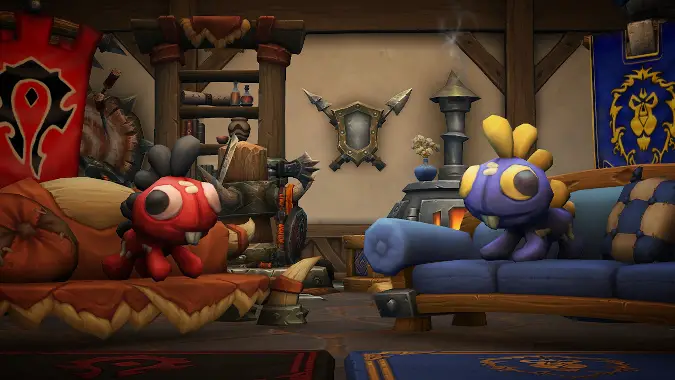
The latest World of Warcraft Twitch Drop is a new color variant of the murloc plushie decor that we’ve seen a few times before: the Cuddly Void Grrgle, a void-tinged option on this cute Player Housing Decor item. Considering the state of the Midnight campaign, having everything in your home have a voidy purple tint is very story appropriate, so you may want to pick up this plush to complete the look. The Cuddly Void Grrgle decor item is available from March 26 at 3pm pacific (6pm eastern) through April 23 at 3pm pacific (6pm eastern).
In order to get this plushie, you need to watch four hours of any participating World of Warcraft streamer on Twitch to pick up your new prize.
My only question is how I can get a dozen (or a hundred) more, and fortunately it sounds simple. After you’ve earned the first one, you can visit Dennia Silvertongue in Silvermoon City, Tuuran in Stormwind, or Gabbi in Orgrimmar. These vendors will sell extra copies of all promotional housing decor items, if you need them. These murloc plushes cost 500 gold each, and are available after you’ve earned them as a Twitch Drop.
If you’re new to Twitch Drops, there are a few things to set up before you can rack up rewards in Blizzard games. Here’s how to earn the Cuddly Void Grrgle in World of Warcraft, starting with linking your Battle.net account to Twitch. It’s as simple as it gets, and you have plenty of time to pick it up, so don’t stress.
How to connect your Battle.net account to your Twitch account
It’s a straightforward process that will only require logging into Twitch and then going to your Battle.net settings — but keep your Battle.net Authenticator handy if you use one.
- Log in to your Twitch account.
- Go to the Battle.net Connections pane. If you’re not already logged into your Battle.net account, you’ll be prompted to do so.
- Scroll until you find the Twitch option, and click +Connect.
- Follow the instructions.
- Watch the streams.
Twitch channels that have drops active are labeled as such (there’s a “Drops Enabled” message near the stream categories). A great way to keep track of your progress is at the Twitch Drops Inventory page, which constantly updates with how close you are to earning the drop.
Once you finish watching for the required amount of time, a clickable message will pop up in the stream chat telling you that your drop is ready to be claimed, or you can claim it via the Drops Inventory page. You’ll receive the confirmation that you got it at that time, and you can always check the Drops Inventory page later to review successful acquisition.
Note that the rewards are independent of possessing or playing the game in question — they’re associated with your Battle.net account so they’ll be available when you play the game.
How to connect your Battle.net account to your YouTube account
There are currently no rewards available on YouTube, but here’s how to connect your accounts for future promotions.
YouTube and Battle.net integration is relatively easy to set up.
- Make sure you are logged in on your YouTube account.
- Go to your YouTube Account Sharing page.
- For Battle.net click the Connect button. You’ll need to be using a personal account to connect, not a “brand” account.
- If you’re not logged into your Battle.net account you’ll be prompted to do so. Make sure you have your authenticator handy!
- Watch the streams.
If you’re gaining credit towards the rewards you’ll see “Connected” underneath the broadcast window. If you don’t see this, ensure that your account is linked and refresh the page. Because the connection is fully integrated with YouTube you won’t need to “claim” the rewards; instead they should appear on your account shortly after you’ve watched for the specified time.
Originally published December 4, 2023. Most recently updated March 26, 2026.
Please consider supporting our Patreon!
Join the Discussion
Blizzard Watch is a safe space for all readers. By leaving comments on this site you agree to follow our commenting and community guidelines.