How to set up new outfits and situations for WoW transmog in the Midnight pre-patch
 @Draygonia_42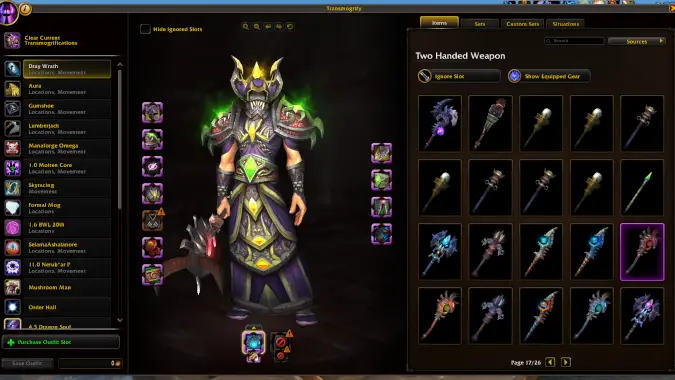
The new Midnight transmog system is here, and navigating the user interface can be a bit tricky — luckily, we’re here to give you a rundown on exactly how to use it so you can look your Sunday best while you adjust to the rest of the patch 12.0 update.
While the new system has several up-front costs to get set up, it has several fine-tuning abilities that make it much more versatile than before. It will most benefit players who have a handful of ensembles that they like to switch between from time to time, and it looks to be a potential budget destroyer for folks who enjoy changing their mog every 23 minutes (like me), though Blizzard’s recent price cut is a big help there.
Let’s start with some specialized vocabulary for this new system, because you’ll quickly get confused if you’re not up on the lingo of the updated transmog system. An “outfit” is a full set of transmog assembled and customized by you, the player. You start with two outfit slots, and you’ll be able to buy up to 50 outfit slots. Your previously saved looks can be found in the ‘Custom Sets’ tab of the transmog interface, where they’re arranged alphabetically. (You’re limited to saving 25 custom sets right now, and a word of caution: if you already have 25 saved and you try to save a new custom set, it will not save and you will not get an error message. You can delete looks by right clicking on them if you need to.) The ‘Sets’ tab has all of the in-game matching armor sets from sources like raids or the Trading Post, and it’s easily searchable for terms like “Remix” or “Icecrown.”
Now let’s look into the details how to use the transmog 2.0 system.
How to set up and save your top transmog looks
Start by clicking on an Outfit’s name on the left side of the transmog window. You can now customize that outfit by choosing a Set, a Custom Set, and/or selecting specific armor slots and picking exactly what look to apply to them to fine-tune the look. Once you’ve perfected your appearance, use the Save Outfit button in the bottom left corner and hand over your bags of gold.
Be sure to always start building a new transmog by selecting the Outfit slot you want to save it to. Several times I made the mistake of creating new looks while still having a previously finished Outfit selected, leaving me with the choice of overwriting that Outfit or starting over.
There are a few new options here. ‘Ignore Slot’ means that a particular armor or weapon slot can maintain its appearance when you change Outfits. You can use this, for example, to have your character always don casual clothes when they enter their house yet keep whatever weapon appearance they had equipped when walking in the door.
‘Show Equipped Gear’ is another option that can be selected for each armor or weapon slot. If you want an Outfit to simply display the appearance of whatever helm or weapon you are actually using, this is perfect.
You can right-click an Outfit’s name rename it, along with customizing the its icon. Assigning an icon by scrolling through the thousands of tiny images in the database without any sort of search function is a bit frustrating (and is probably World of Warcraft’s decades of overlapping databases showing their age). Here’s a neat trick: drag an icon from your action bars into the icon window to assign it to an outfit.
Embarrassingly, it took me ten minutes and looking up a video to figure out how to actually swap between Outfits. To change your character’s appearance in-game, left-click on the icon next to the Outfit’s name. You can also drag the icon of an Outfit to your action bars for super easy wardrobe changes.
Here’s the widely-regarded best part of the new transmog system: swapping between Outfits is unlimited and free, with a 3-second cooldown. The transmog window also has a handy ‘Clear Current Transmogrifications’ button at the top left if, for some weird reason, you want to actually display the gear your character has equipped.
How to set up Situations for your Outfits
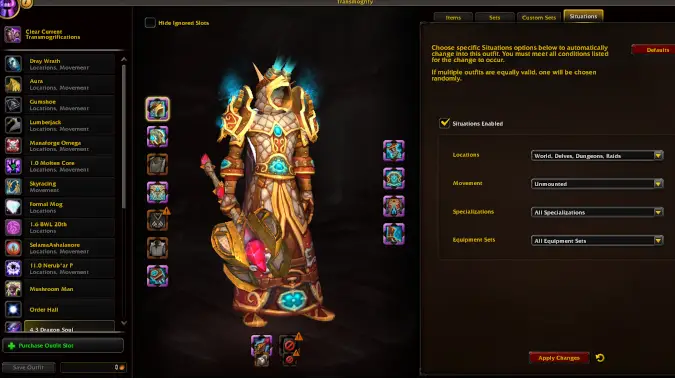
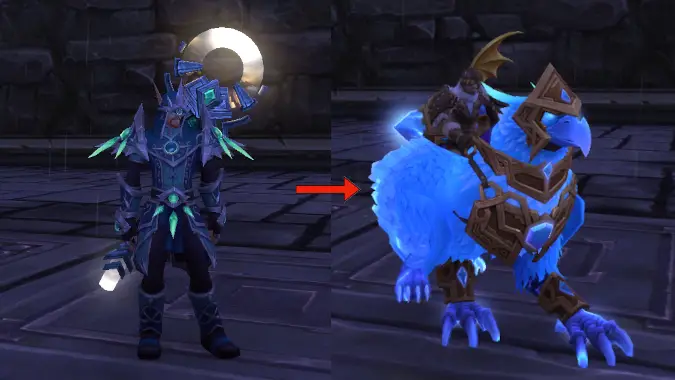
The final aspect of the new transmog system also takes some time and skill to set up, but the results are a pretty amazing appearance randomizer in the form of Situations. This final tab will give you the ability to set up a series of places, gear, or other statuses that will automatically change your mog to match.
The example everyone has been talking about is having an Outfit designated to be your at-home threads. Whenever you walk in the front door of your Player Housing home, your transmog will instantly swap to your chosen sweatpants, cozy sweater, or other casual getup. You can keep these Situations simple, ignore them outright, override them as you please, or construct a complicated series of code-like programming designed to automatically dress you in an appropriate look for any circumstance.
Each of your saved Outfits has its own set of Situation drop-down menus. If you have an Outfit that you only ever want to change into manually, you can deselect the ‘Situations Enabled’ checkbox. This means that the Outfit won’t ever be placed on you when you mount up or step out of your front door, but you can still don it by clicking its icon any time.
Enabling Situations throws the Outfit into the pool to be chosen from when certain conditions are met. None of those conditions are complicated, but there are a satisfying number of different categories to choose from.
Perhaps the simplest is the ‘Movement’ drop-down. You can assign an outfit to be worn whenever you hop on a flying mount. If only one of your Outfits has this box selected, you will always see your character don it when you mount up. If several Outfits have this box selected, then one of them will be chosen randomly.
There are a wide variety of ‘Locations’ you can select from such as Rested Areas, Home, World, Delves, and Dungeons. Each can have their own designated Outfit or, if you’ve got the gold for a large number of Outfit slots, a whole array of potential Outfits. You can also set up Situations for Class Specializations, Talent load-outs, and saved Equipment Sets.
Getting started with setting up Situations can be a bit frustrating. It took me a few minutes to successfully get my Skyracing ensemble to consistently pop onto my character while also making it change back to a combat-based outfit upon dismounting. Be sure to uncheck the ‘Situations Enabled’ box for any spare Outfits that you’ve purchased but not yet set up.
If you decide you’d like to show off an old favorite or brand new transmog but you don’t want it to automatically change the next time you set foot in a city, you can right-click on the Outfit’s icon. This is a fantastic feature that lets you keep a look active for however long you’d like without going through the pain of unchecking dozens of boxes.
Final thoughts on the new system and user interface
There are a few things that I wish the new system would allow which hopefully will be added in the near future. The hyper-organizer in me is extremely frustrated to be unable to rearrange Outfit slots. Think carefully when you are first setting up your transmogs, as new ones have to go on the bottom of your list or replace an existing one towards the top. I also wish I could lock an Outfit’s appearance, as several times I have accidentally overwritten an Outfit and not realized for hours.
I have absolutely loved setting up Situations. Watching my transmog automatically change between two of my favorite looks for the first time when flying out of Dornogal was really exciting. I have made good progress on a complex system of ensembles, but I still have a decent number of Outfits unassigned. Like Player Housing, I’ll be coming back to my Situations menu quite often as I gather ever more stuff.
Overall I am quite happy with the newest iteration of transmog, particularly after the recent reduction in the price of assigning a look to an Outfit slot. Be sure to leave a slot or ten open for all of the void-accented ensembles we’ll be picking up in Midnight.
Please consider supporting our Patreon!
Join the Discussion
Blizzard Watch is a safe space for all readers. By leaving comments on this site you agree to follow our commenting and community guidelines.