How to activate and use the new built-in damage meter in World of Warcraft: Midnight
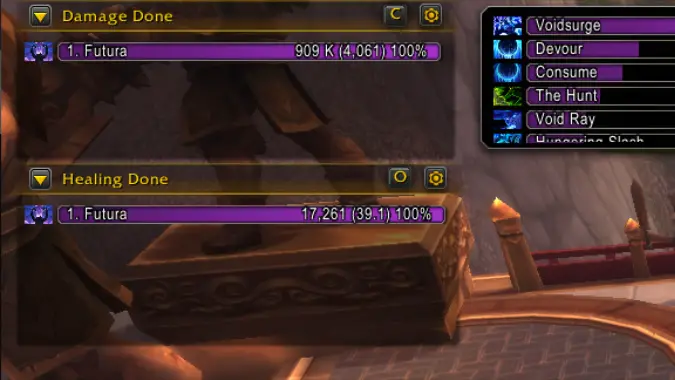
The Midnight pre-patch marks the removal or sunsetting of many addons from World of Warcraft. It’s not all doom and gloom, though; some of these features are being integrated directly into the base game, making them accessible even to players who don’t run addons, and one of those is the trusty old damage meter. Arguably one of the oldest uses for addons in WoW, damage meters are used to measure all kinds of metrics in combat — not just damage, but healing, damage prevented, deaths, who’s used interrupts and dispels during a fight, and so on. They’re one of the easiest ways to tell at a glance if things need to change during a fight, and now we’ll have one built into Midnight.
First off, though, you’ll need to turn it on — it’s deactivated by default. Open the in-game menu (Escape by default), then click Options and choose the Gameplay Enhancements category. Partway down, you’ll find an entry for Damage Meter, which is just a simple checkbox. Turning it on will enable and display the damage meter; you can configure it further with Edit Mode. Editing the meter will allow you to change the style of the bars, the complexity of the numbers displayed, whether or not to apply frames to the bars, how opaque the whole meter is, and so on — besides also setting the position and size!
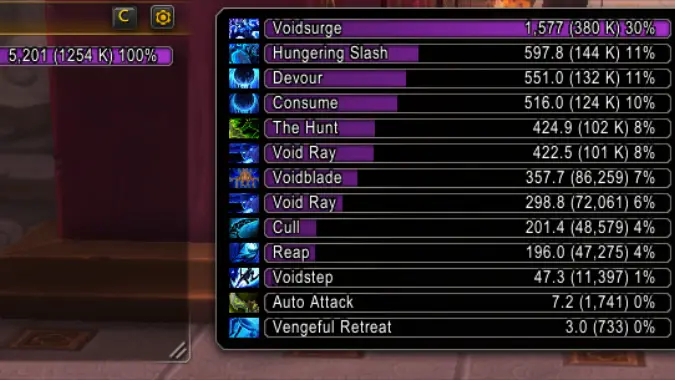
There are a few buttons along the top of the damage meter itself that allow you to configure it, as well. The top left button, a downward triangle, will allow you to choose one option from among three categories; this sets what is displayed in that particular damage meter window. Your options are broken down into Damage (Damage Done, DPS, Damage Taken, or Avoidable Damage Taken), Healing (Healing Done or HPS), and Actions (Interrupts, Dispels, or Deaths). Clicking a bar inside the meter will get you a breakout window that shows relevant, more specific data — for example, clicking a Damage Done bar will show you how much damage each of that character’s abilities are doing.
The button second from the right — by default showing an “O,” although it will change based on what you pick — will show your damage (or healing, or actions) for a certain segment of combat. “O” stands for overall, which as it suggests shows stats for across an entire dungeon or raid; by contrast, Current shows just the current segment, so the fight you’re actually in right now. Other segments shown are fights you’ve already completed — so if you want to see how you were doing on prior tries of this boss, you can flip back to prior segments and look at them.
Finally, the settings menu for the damage meter — the gear button on the top right — has a menu with some useful options in it. “Settings” currently just opens the game options to the checkbox that lets you turn the meter on and off, while Edit Mode opens the damage meter in Edit Mode. Lock Window window will keep you from moving the window around, while Make Non-Interactive goes even further — you can no longer interact with any aspect of the window except for the settings, but it allows you to click through the damage meter entirely. Delete Window lets you delete extra damage meter windows, but only applies to windows after the first, while Create New Window lets you make a second window; the contents of this window can be set separately from the first — so you could have one open for overall DPS and one open for DPS on the current segment (handy for Mythic+), or one open for Healing and one open for Avoidable Damage Taken (perfect for salty healers), or any combination you can think of. One gotcha, though — the second window and onward can be moved, resized, etc. with the mouse, while the first window can only be moved and resized with Edit Mode.
None of this is replacing the standard combat logging, either, so you’ll still be able to rely on historical data and such from a log analysis site like Warcraft Logs. That functionality relies on the external combat log, which can still be turned off by typing ‘/combatlog’ into the chat window, just like in The War Within — and some addons, like Deadly Boss Mods, will likely still handle that automatically for you.
Please consider supporting our Patreon!
Join the Discussion
Blizzard Watch is a safe space for all readers. By leaving comments on this site you agree to follow our commenting and community guidelines.